How we replaced metered cloud billing with a fixed-cost, privacy-first architecture by bringing the AI to the data.
The Executive Summary
For the modern enterprise, the “Data Cloud” (platforms like Snowflake Cortex or Databricks Mosaic AI) offers an enticing promise: integrated Artificial Intelligence that allows any executive to query their data in plain English. However, this convenience carries two significant board-level risks: Unpredictable OpEx (operational expenditure) via metered billing, and Data Sovereignty concerns regarding sensitive IP leaving the corporate firewall.
Our latest initiative, “Local Cortex,” proves that these trade-offs are no longer necessary. We successfully engineered a Sovereign AI Data Platform that mirrors the capabilities of top-tier cloud vendors—Text-to-SQL, intelligent PII redaction, and sentiment analytics—entirely within a secure, offline environment.
The result? A data architecture that offers the intelligence of the cloud with the privacy and fixed-cost structure of on-premise infrastructure.
The Strategic Drivers: Why Go “Sovereign”?
1. Predictable Cost Structure (CapEx vs. OpEx) Cloud AI services charge per query or per “token.” As usage scales, costs become volatile. Our Local Cortex architecture runs on fixed commodity hardware. Whether we run 10 queries or 10,000, the marginal cost is zero.
2. The Paradigm Shift: Bringing AI to the Data Traditional AI architectures require an “Export Mindset”—uploading massive datasets to external APIs, incurring latency and egress fees.
We reversed this flow. We treat the Large Language Model not as a destination, but as a utility that deploys inside the data perimeter. The model “travels” to where the data lives (on-premise or local VPC). This eliminates network bottlenecks, removes egress costs, and ensures that data never crosses the sovereign boundary.
3. Compliance by Design
By utilizing a “Compliance Firewall” at the point of ingestion, we automate governance. Data is validated, sanitized, and standardized before it ever reaches the analytical layer, ensuring downstream reports are regulatory-compliant by default.
The Solution Architecture
We deconstructed the monolithic “Cloud Warehouse” into modular, open-source components that we fully own and control.
- The Compute Engine (PySpark): The industry standard for large-scale data processing. It handles the heavy lifting of aggregation and reporting without the per-minute billing of cloud warehouses.
- The Intelligence Layer (Generative AI): We deployed a highly efficient 1.5-Billion Parameter Model (Qwen2.5) via Ollama. This “Small Language Model” proved to be the strategic sweet spot—efficient enough to run on standard infrastructure, yet intelligent enough to perform complex reasoning tasks.
- The Copilot Interface: An automated agent that translates executive business questions (e.g., “Show me Q3 attrition rates”) into executable code, creating a “self-service” data culture.
The following diagram visualizes this secure data perimeter. It illustrates the end-to-end flow: raw data is ingested via our ‘SparkGuard’ firewall (represented by Lambda), processed at scale by PySpark (Glue), and enriched by the local AI utility (SageMaker) for in-stream inference and redaction—all before reaching the analyst through the Copilot interface (Amazon Q).
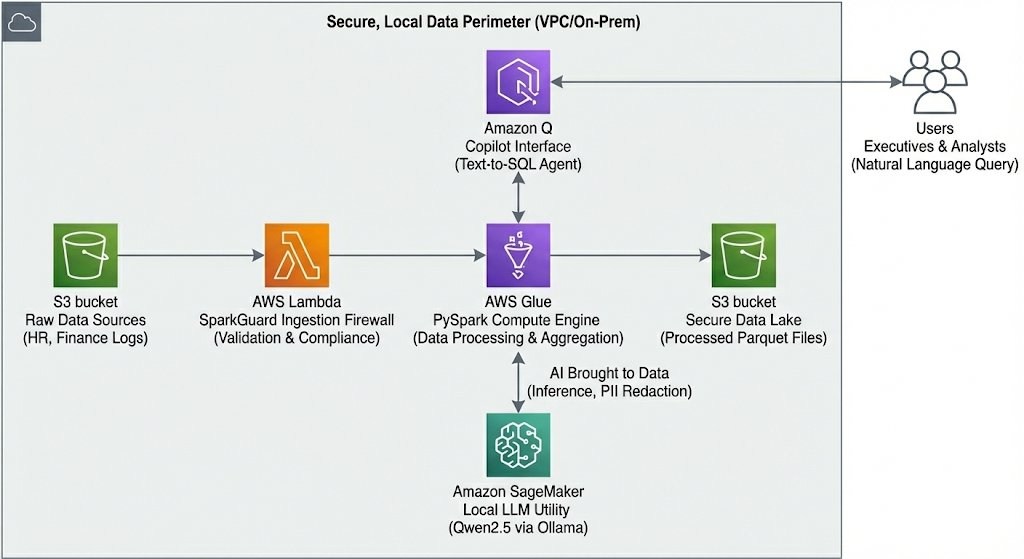
The Local Cortex architecture, utilizing AWS-compatible conceptual symbols to illustrate the secure, offline data flow.
Business Case 1: Workforce Intelligence (HR)
The Challenge: Assessing employee burnout and retention risks without exposing highly sensitive personnel files to third-party cloud processors.
The Sovereign Solution:
- Risk Detection: The local AI analyzes unstructured employee feedback to detect sentiment trends (e.g., “Burnout Risk”) without a human reading the raw text.
- Global Standardization: The system automatically translates multilingual feedback (e.g., German to English) within the secure perimeter, unifying global reporting.
- Automated Compliance: The system autonomously flags and isolates records that violate local labor laws (such as notice period violations) before they enter the reporting stream.
Business Case 2: Financial Integrity & Fraud Prevention
The Challenge: Enabling data analysts to query financial streams while strictly adhering to GDPR and privacy standards.
The Sovereign Solution:
- Fraud Blocking: A “Zero-Trust” ingestion layer automatically rejects high-value anomalies (e.g., unauthorized transactions >$10,000) in real-time.
- Intelligent Redaction: Unlike rigid legacy rules, the AI contextually understands and redacts PII (Personally Identifiable Information) like email addresses, ensuring that analysts see the trends without seeing the identities.
- Democratized Access: Executives can ask plain-language questions like “List high-value customers in New York,” and the system generates the precise SQL query to retrieve the answer instantly.
R&D Report: Findings from the Edge
Building a sovereign AI platform on commodity hardware required navigating the trade-offs between model size, latency, and intelligence. Our Proof-of-Concept (PoC) uncovered three critical insights that define the viability of Local AI.
1. The “Goldilocks” Threshold (0.5B vs. 1.5B)
We initially stress-tested the architecture using an ultra-lightweight 0.5-billion parameter model.
- The Failure: While fast, the 0.5B model lacked “Negative Constraint Adherence.” When instructed not to use specific SQL operations (like
JOINson non-existent tables), it frequently ignored the rule. It also struggled with PII masking, often parroting back sensitive data instead of redacting it. - The Fix: We upgraded to the Qwen2.5:1.5b model.
- The Finding: 1.5B parameters proved to be the “minimum viable intelligence” for reasoning tasks. It successfully respected negative constraints and executed complex “One-Shot” prompt instructions (e.g., “Alice@mail.com ->
<REDACTED>”) with 100% consistency, while maintaining a negligible ~1GB RAM footprint.
2. The “Hallucination” Trap in Text-to-SQL
Generating SQL from natural language is prone to hallucination—where the AI invents tables that do not exist in the schema.
- The Challenge: In early HR tests, the model attempted to query a
departmentstable that didn’t exist, causing Spark execution errors. - The Solution: We implemented a Schema-Aware System Prompt. By forcefully injecting the strict DataFrame schema (
df.dtypes) into the system context and adding a “Strict SQL” constraint, we eliminated structural hallucinations. - Strategic Takeaway: Trust, but verify. The architecture succeeds because it uses a “Copilot” pattern (AI generates code $\to$ Human reviews $\to$ Spark executes), rather than fully autonomous execution.
3. Deterministic vs. Probabilistic Guardrails
We discovered that AI cannot be the only line of defense.
- The Finding: “Soft” tasks like Sentiment Analysis and Translation are perfect for Probabilistic AI (LLMs). However, “Hard” constraints—like preventing transactions over $10,000 or enforcing data types—must be handled by Deterministic Code.
- The Implementation: We built SparkGuard, a hybrid validation layer. It uses Python code for binary rules (Ingestion Firewall) and reserves the AI for semantic tasks (PII Redaction). This hybrid approach reduces computational overhead and ensures zero-fail compliance.
The Verdict: AI on Your Terms
The Local Cortex project demonstrates a shift in the Data Engineering paradigm. We have moved from “Cloud-First” to “Intelligence-First.”
By leveraging efficient open-source models and robust local compute, we have delivered a platform that empowers the C-Suite with instant insights while satisfying the CISO’s requirements for security and the CFO’s requirements for budget predictability. This is not just a data warehouse; it is a competitive advantage in data sovereignty.